How to Make 3D Art in 10 Simple Steps
To make 3D art in 10 simple steps, start by choosing beginner-friendly software like Paint3D or Tinkercad. These tools are great for newbies because they’re easy to use and have lots of helpful features.
Begin by sketching simple 2D shapes, then convert them into basic 3D models.
Once you have your shapes, use tools to move, scale, and rotate your objects. This helps bring your creation to life by adjusting its size and position.
Next, add colors, textures, and lighting to enhance your scene and make it more realistic.
Group and arrange elements carefully to create a balanced composition. Don’t forget to adjust camera angles for the best views of your artwork.
Finally, preview your work in mixed reality to see it come alive. Trust me, you’ll find plenty more techniques to refine and showcase your 3D creation as you go along!
Key Takeaways
- Choose beginner-friendly 3D software like Paint3D, Tinkercad, or Blender to start your 3D art journey.
- Begin with simple 2D sketches using basic shapes and convert them into 3D models with extrusion tools.
- Manipulate objects by moving, scaling, and rotating to refine shapes and achieve desired proportions.
- Apply colors, textures, and set up lighting to enhance realism and depth in your 3D scene.
- Adjust camera angles and preview in Mixed Reality mode for final presentation and review.
Choose Beginner-Friendly Software for Your 3D Art
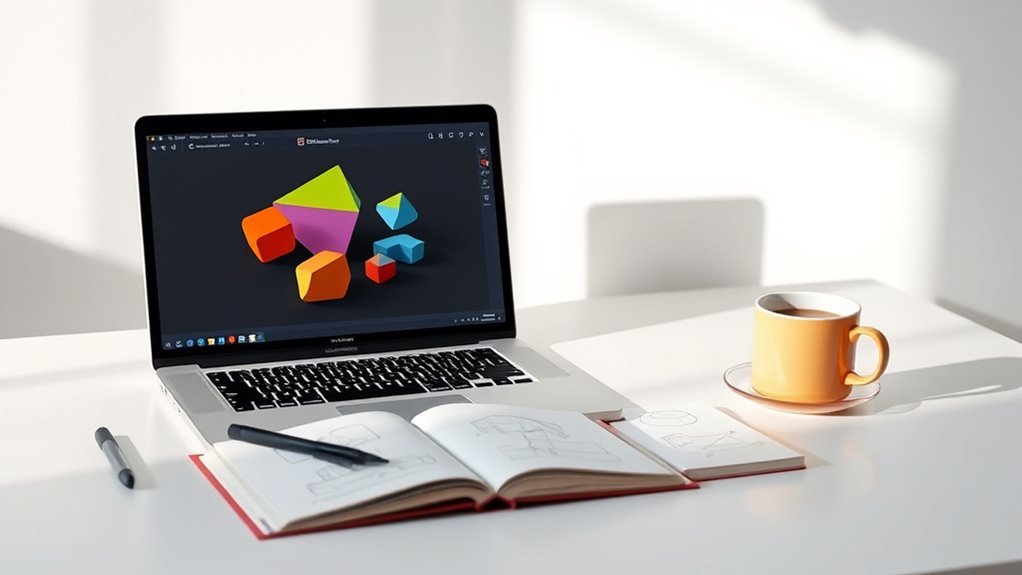
Before diving into complex tools, choose beginner-friendly software that makes learning 3D art easier. You’ll find options like Paint3D and Tinkercad perfect for starting out.
Paint3D comes pre-installed on Windows 10, offering an intuitive interface that lets you create and manipulate 3D objects without prior experience. Tinkercad, a web-based platform, simplifies 3D modeling with drag-and-drop tools and ready-made shapes, making it easy to build models quickly.
If you want a bit more power without overwhelming complexity, Blender is a free, open-source option packed with tutorials designed for beginners. These programs typically include helpful tutorials, templates, and active community support, so you won’t feel lost.
Start by Sketching Simple 2D Shapes
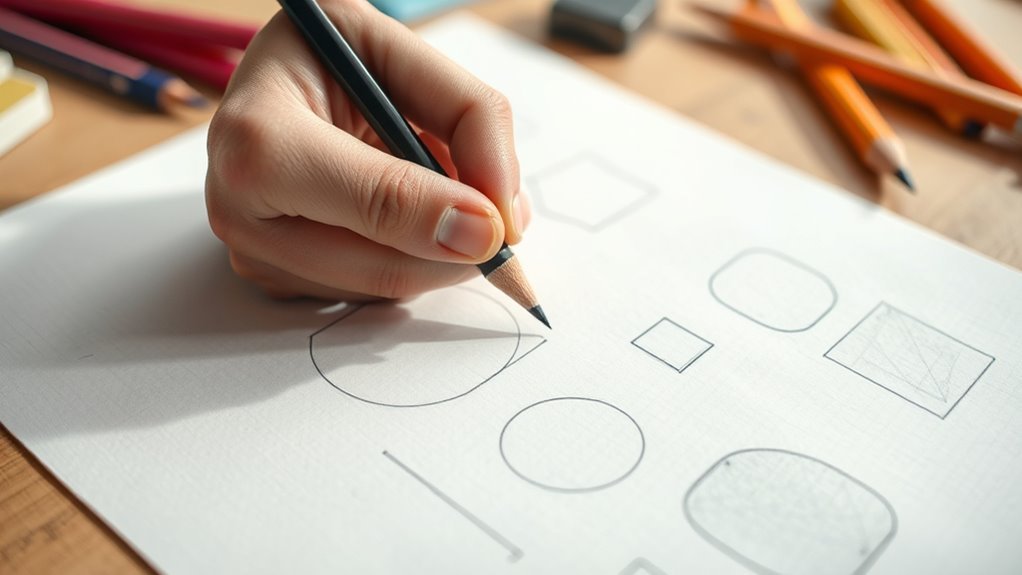
Start by choosing basic shapes like circles or squares to map out your design’s structure. Sketch clear, light outlines so you can easily adjust proportions as you go.
Planning these simple forms helps you create a solid foundation for your 3D art. It’s a great way to keep things organized before moving on to more detailed work.
Choosing Basic Shapes
When you sketch simple 2D shapes like circles, squares, and triangles, you lay a solid foundation for your 3D art. Choosing basic shapes is essential because they act as building blocks for your entire model.
Focus on sketching these shapes proportionately and aligned properly to guarantee your final piece looks balanced. Don’t hesitate to combine different basic shapes—like cylinders for limbs or cones for heads—to create more complex forms.
Keep your sketches light and flexible; this way, you can easily adjust them as you refine your design. By mastering sketching simple shapes early, you make the shift to 3D modeling smoother and more efficient.
This approach really sets you up for success in the next steps of your 3D art journey.
Sketching Clear Outlines
Although sketching simple 2D shapes lays the groundwork, you’ll want to focus on creating clear outlines to bring your 3D art to life. Start by lightly sketching basic shapes like circles and squares.
Use simple lines to define contours, keeping your work loose and minimal. Incorporate perspective by placing vanishing points to add depth.
Once satisfied, darken the outlines with a pencil or pen for clarity.
| Step | Tip |
|---|---|
| 1. Sketch Basic Shapes | Light, simple forms |
| 2. Define Contours | Use clean, clear outlines |
| 3. Apply Perspective | Add vanishing points for depth |
| 4. Refine Outlines | Darken final lines for emphasis |
Clear sketching and outlines set a solid base for your 3D art.
Planning Shape Proportions
By sketching simple 2D shapes like circles, squares, and triangles, you can effectively plan the proportions and spatial relationships of your 3D art. Start by breaking down complex objects into these basic shapes to grasp their structure clearly.
Focus on maintaining consistent scale and perspective within your sketches to guarantee your 3D model looks accurate. Sketching helps you visualize how different shapes connect and relate in space, preventing proportion errors later.
Adding basic shading or notes in your sketches can also highlight light sources and depth, enhancing your understanding of the form. This approach simplifies the design process, making it easier to build detailed and well-proportioned 3D art from your initial sketches.
Convert 2D Sketches Into Basic 3D Models
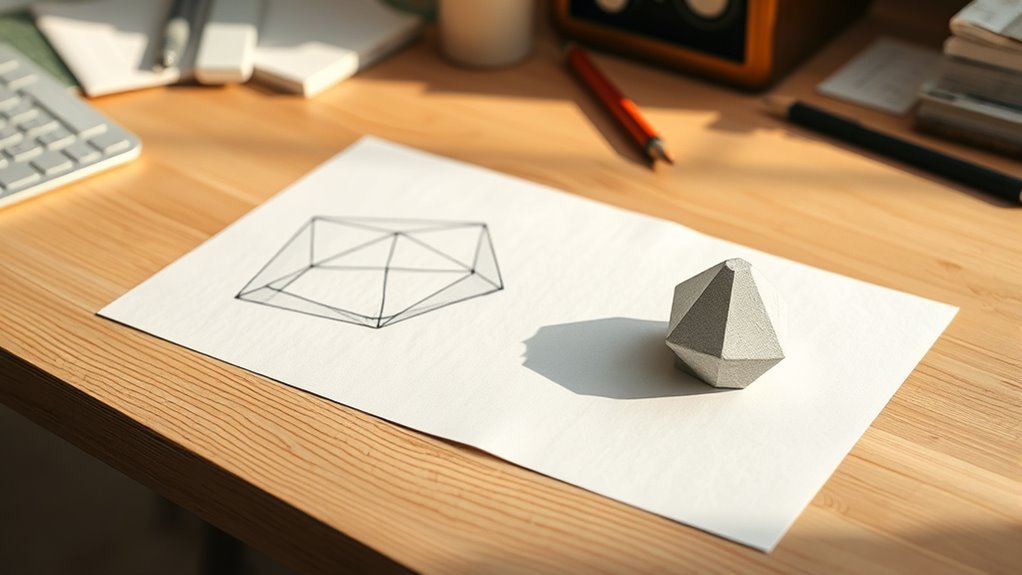
Once you have a clear 2D sketch ready, you can easily transform it into a basic 3D model using your software’s “Make 3D” tool or its equivalent. Start by importing or creating your 2D sketch with distinct outlines and details. This clarity guarantees the software accurately interprets your design during conversion.
Having a clear 2D sketch with distinct outlines ensures smooth, accurate conversion to a basic 3D model.
When you apply the tool, the software adds depth through extrusion, turning your flat sketch into a tangible 3D model. To refine your creation, focus on these key steps:
- Adjust the extrusion depth to control thickness.
- Modify bevels to smooth or sharpen edges.
- Apply materials or colors to enhance visual appeal.
- Use navigation tools to view your model from different angles.
It’s pretty straightforward once you get the hang of it. Just play around with these settings, and you’ll see your sketch come to life in 3D!
Move, Scale, and Rotate 3D Objects Confidently
When you’re ready to position your 3D objects exactly where you want them, mastering the move, scale, and rotate tools will give you full control over your scene. Use the move tool to click and drag objects along the X, Y, or Z axes for precise placement.
When scaling, adjust the scale handles to resize your objects uniformly or non-uniformly. It depends on whether you want to maintain proportion or create intentional distortion.
To rotate, click and drag the rotation rings around your objects’ axes for smooth 360-degree control. For precision, you can also input exact values for position, scale, or rotation in the properties panel.
Don’t forget to leverage keyboard shortcuts and gizmos—they speed up your workflow and help you move, scale, and rotate 3D objects confidently. With these tools at your fingertips, you’ll quickly create balanced and dynamic scenes that reflect your creative vision.
Add Colors, Textures, and Materials to Your Models
Adding colors, textures, and materials brings your 3D models to life and defines their unique appearance. You start by applying colors using your software’s material or color options, setting the base look.
Colors, textures, and materials transform 3D models, defining their unique and vibrant appearance.
Next, textures add depth—import image files and map them onto surfaces for realism or style. Materials control surface qualities like glossiness or transparency, making your model visually rich.
To enhance your models effectively, follow these steps:
- Choose base colors that suit your design’s mood or theme.
- Import and apply textures to add detail, whether rough, smooth, or patterned.
- Adjust material properties such as reflectivity, bump maps, and metallic effects for realism.
- Combine multiple textures and materials to create layered, dynamic surfaces.
Mastering these elements lets you build intricate, eye-catching 3D art that stands out with vivid colors, realistic textures, and versatile materials. It’s all about making your models pop and feel truly alive!
Set Up Lighting to Enhance Your 3D Art
Although colors, textures, and materials shape your 3D models, setting up lighting brings them to life by adding depth and dimension. Proper lighting creates realistic shadows and highlights, enhancing the realism of your scene.
Start by positioning multiple light sources—key, fill, and rim lights—to balance illumination and emphasize various parts of your artwork. Adjust the intensity, color, and angle of these lights to bring out textures and materials, making objects look more convincing.
Experiment with different light types like point, directional, or spotlights to achieve specific moods or effects. Using a three-point lighting setup as your foundation helps highlight your models effectively, ensuring shadows fall naturally and add depth.
Group, Arrange, and Refine Your 3D Scene
You’ll want to group related objects to keep your scene organized and make editing easier. Use alignment tools to adjust each element’s position, rotation, and scale for a balanced layout.
Keep refining the details from different angles to polish your 3D art. It really helps to step back and look at your work from all sides as you go. This way, you catch anything that feels off and fix it right away.
Organize Objects Efficiently
When you group related 3D objects together, you make your scene easier to manage and edit. Grouping lets you control multiple objects as one, reducing clutter and improving workflow.
Use alignment tools to place objects precisely, ensuring a polished layout. Establish a hierarchy by parenting objects, which keeps your scene organized and makes complex edits simpler.
To organize objects efficiently, follow these steps:
- Group related elements to simplify selection and editing.
- Use alignment tools for consistent spacing and arrangement.
- Create a clear hierarchy by parenting child objects to parents.
- Regularly refine your scene by adjusting object properties for balance.
Adjust Object Positioning
Since precise positioning shapes the overall impact of your 3D scene, you’ll want to master grouping, arranging, and refining objects carefully. Start by using grouping to combine multiple objects, so you can move and manipulate them easily as one unit.
Next, utilize arrange tools to align, distribute, and layer your objects with precision. These tools help you maintain balance and order within your composition.
For fine control, focus on object positioning by adjusting each object’s X, Y, and Z axes individually. Snapping options and grid guides will keep spacing consistent and prevent misalignment.
Don’t forget to preview your scene from various angles frequently to ensure your arrangement creates the visual flow you want. This approach will make your 3D art look polished and intentional.
Fine-Tune Scene Details
Although arranging your 3D objects gets your scene started, fine-tuning details through grouping, precise alignment, and individual adjustments brings your composition to life. To enhance your 3D art, focus on these key steps:
- Group multiple objects for easier manipulation and maintain consistent adjustments across your scene details. This really helps keep things organized and efficient.
- Align, stack, or distribute objects precisely to create a balanced, well-composed layout. Getting these placements just right makes a big difference in how your scene feels.
- Perform object adjustment by tweaking position, rotation, and scale on individual elements to add polish. These little changes can really elevate your work.
- Refine lighting and shading settings to boost depth and realism, completing your lighting refinement process. It’s the finishing touch that brings everything together beautifully.
Adjust Camera Angles for Optimal Views
To capture the most compelling perspective for your 3D scene, you’ll want to adjust the camera angles carefully. Start by using the orbit, pan, and zoom tools to navigate around your model, exploring various viewpoints.
Changing the camera angle helps you highlight important details or create dramatic effects by tweaking the horizon, height, and depth. Don’t hesitate to experiment with different positions; this will help you find a balanced and visually interesting perspective, especially in complex compositions.
Always preview your scene from multiple camera angles to assure your artwork looks appealing from all sides. By mastering camera navigation, you’ll gain full control over how your 3D art is presented, making your final piece more dynamic and engaging.
Preview Your 3D Artwork Using Mixed Reality Tools
When you want to see your 3D artwork come to life, Mixed Reality tools in Paint3D let you preview your creation within your real-world environment using your device’s camera. To switch to Mixed Reality mode, head to the “Effects” tab and select the “Mixed Reality” option.
This instantly places your 3D artwork in your surroundings for a live preview. It’s a cool way to see how your creation fits into the space around you.
Here’s how to make the most of it:
- Adjust your 3D artwork’s placement and scale to fit naturally within your space.
- Use your webcam view to rotate and walk around your piece, checking it from every angle.
- Observe how your artwork interacts with real-world objects to ensure realistic integration.
- Capture snapshots or recordings in Mixed Reality mode to save and review your preview later.
Using these steps, you’ll gain valuable insight into how your 3D artwork truly looks beyond the screen. Give it a try and see your work in a whole new way!
Save, Export, and Share Your Finished 3D Art
Make sure you save your project frequently to avoid losing any progress. It’s also a good idea to keep multiple versions if needed.
When you’re ready, export your 3D art as an image or a model file. This makes it easy to share or use in other applications.
Finally, share your creation directly from Paint3D. You can upload it to social media or send it via email.
Saving Project Files
How do you guarantee your 3D art remains accessible for future edits or sharing? The key is to properly save and export your project files. When working in Paint3D, always save your project regularly by clicking the “Save” button.
This ensures you can revisit and refine your work anytime. Once your art is complete, export it appropriately for different uses.
Follow these steps to manage your project files effectively:
- Save your project frequently to avoid losing progress.
- Export your artwork as an image (PNG, JPEG) for easy sharing or printing.
- Use the “Export as 3D Model” option to save in formats like FBX or OBJ for other 3D applications.
- Choose the right file format and resolution to match your needs.
Exporting And Sharing
After saving your project files, the next step is to export and share your finished 3D art so others can enjoy it. You’ll want to export your work in the right format—use PNG, JPEG, or GIF for images, and OBJ or STL if you plan to use your 3D model in other applications or for printing.
Always check the quality and resolution of your exports to make sure your art looks its best. For sharing, upload your files to cloud storage or online platforms to reach a wider audience.
Many 3D programs offer direct sharing options to social media or let you create shareable links. By focusing on export and sharing, you’ll guarantee your 3D art gets the attention it deserves.
Frequently Asked Questions
Can I Create 3D Art as a Beginner?
Yes, you can create 3D art as a beginner! Start with simple tools and basic shapes, follow tutorials, and practice regularly.
You’ll quickly build confidence and skills to make more complex 3D designs over time. Keep at it, and enjoy the process!
What Are the Steps of a 3D Artwork?
You start by planning your design, then create or import basic shapes. Next, refine details and textures.
After that, set up lighting and camera angles. Finally, render or export your 3D artwork for presentation or editing.
How to Do Easy 3D Drawing?
Start by sketching simple shapes in 2D. Then, add shading and gradients to create depth.
You can use basic 3D tools in software to extrude shapes. It’s pretty straightforward once you get the hang of it.
Finish by applying highlights and shadows for a realistic effect. This really makes your drawing pop!
How to Draw 3D Shapes Step by Step for Beginners?
Start by sketching basic shapes, then add vanishing points to guide depth. Draw converging lines toward them.
Shade your shapes for volume, and overlap forms. Keep practicing to build your 3D drawing skills step by step. It gets easier with time!
Conclusion
By following these 10 simple steps, you’ll quickly build your 3D art skills and create impressive pieces. Did you know that 3D modeling jobs are expected to grow by 13% over the next decade?
This means learning 3D art not only boosts your creativity but also opens exciting career opportunities. So, don’t hesitate—dive in, experiment, and share your unique 3D creations with the world!
Getting started with 3D art is easier than you think, and with practice, your skills will improve fast. Whether you want to design characters, environments, or objects, 3D modeling offers endless possibilities.
Remember, mastering 3D art can lead to rewarding careers in gaming, animation, film, and more. So grab your tools, unleash your creativity, and start making stunning 3D art today!