How to Add Art to Frame TV in 5 Easy Steps
To add art to your Frame TV in five easy steps, start by uploading your favorite personal photos. You can do this either through a USB drive or the SmartThings app. Make sure your images are 3840 x 2160 pixels to get the best quality display possible.
Next, you’ll want to customize the matte styles and colors for each piece. This helps your art stand out and match your room’s vibe perfectly.
After that, build collections to keep your digital art library organized and easy to browse.
Then, manage settings like brightness and slideshow speed right from the app. This way, you can create the perfect viewing experience for any time of day.
Finally, optimize the motion and light sensors on your Frame TV to ensure your art looks stunning no matter the lighting.
Keep going to explore more tips that will help you turn your Frame TV into a true gallery-like experience.
Key Takeaways
- Connect a USB drive or use the Samsung SmartThings app to upload resized personal photos (3840 x 2160, 16:9) to the Frame TV.
- Access Art Mode, select “Add Your Photos,” and import images into the digital art library or collections.
- Customize matte styles and colors by pressing Up on the OneRemote and selecting the “Matte” option for each artwork.
- Organize and manage images in themed collections, adjusting slideshow speed, brightness, and color tone via the SmartThings app.
- Make sure motion and light sensors are unobstructed and properly positioned. This helps with optimal automatic display adjustments.
Uploading Personal Photos to Your Frame TV (USB and App)
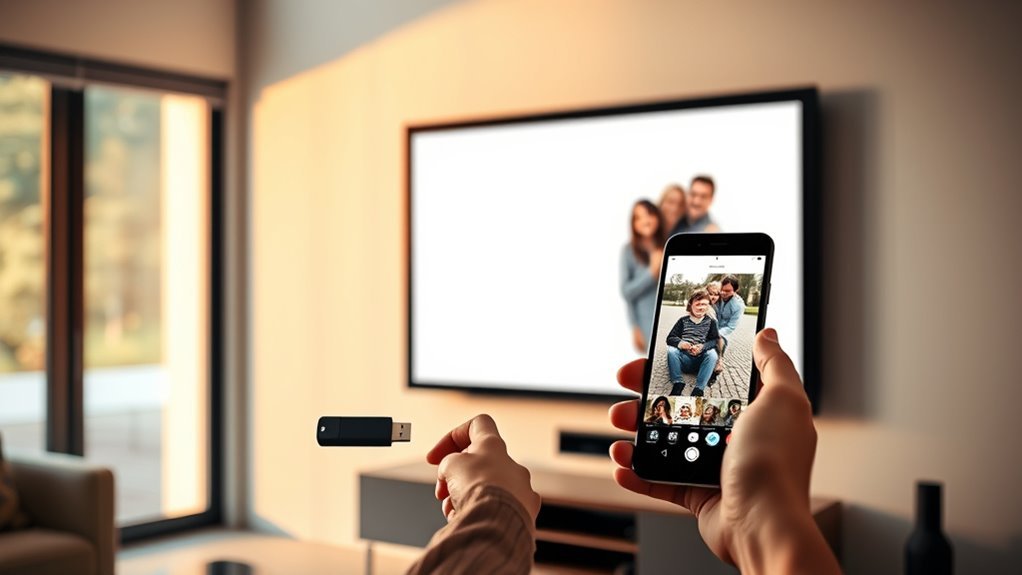
Before you start displaying your favorite memories, you’ll want to upload your personal photos to your Frame TV using either a USB drive or the Samsung SmartThings app.
Begin by uploading your personal photos to your Frame TV via USB or the SmartThings app.
To use a USB, connect the drive containing your photos to the One Connect Box. Then, enter Art Mode and access My Collection to import images. Navigate your USB device with the remote, select the photos you want, and save them to your personal collection—make sure not to remove the USB while importing.
Alternatively, the SmartThings app lets you add photos directly from your phone’s gallery, provided your app is linked to the TV.
For the best display quality, resize your personal photos to 3840 x 2160 pixels with a 16:9 aspect ratio before uploading.
Once imported, your photos will be ready to showcase in Art Mode, offering a seamless way to personalize your Frame TV with your favorite images.
Setting Up Matte Styles and Colors for Your Art
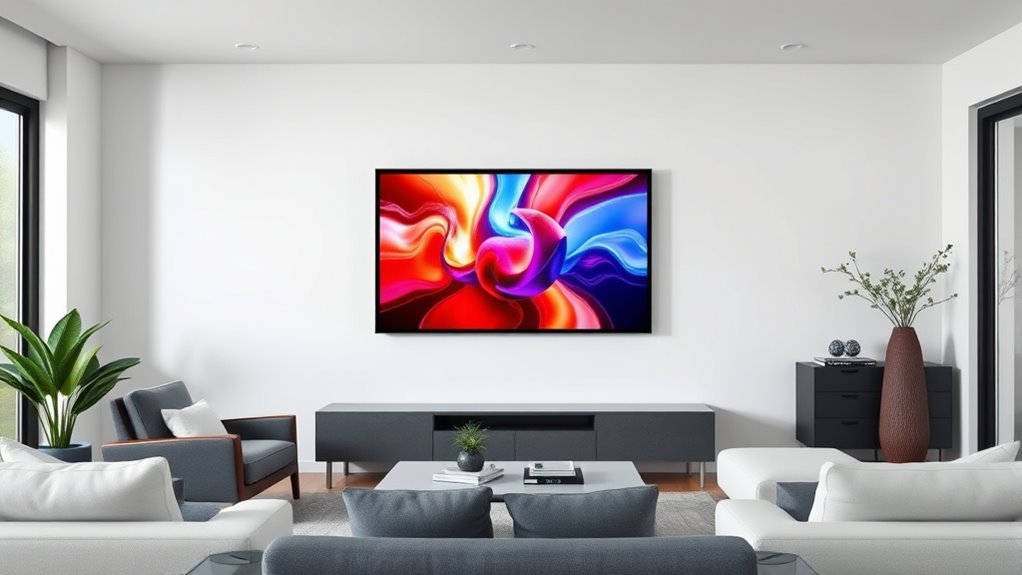
When you want to elevate your artwork’s presentation on the Frame TV, setting up matte styles and colors adds a polished touch that complements both the image and your room’s decor. Start by navigating to your chosen artwork in Art Mode on your Samsung Frame TV.
Press Up on the OneRemote to open the options menu, then select “Matte.” You’ll see several matte style options like Modern Matte or Shadowbox Matte. Use the Left and Right buttons to browse and pick the style that suits your art best.
Next, adjust the matte color using the directional pad. Choose a tone that enhances your artwork or matches your room’s aesthetic.
Once satisfied, press “Select” to save your matte style and color settings. Remember, you can customize these settings for each piece of art individually, making your Frame TV a dynamic and stylish part of your home.
Building and Customizing Your Digital Art Library on the Frame TV
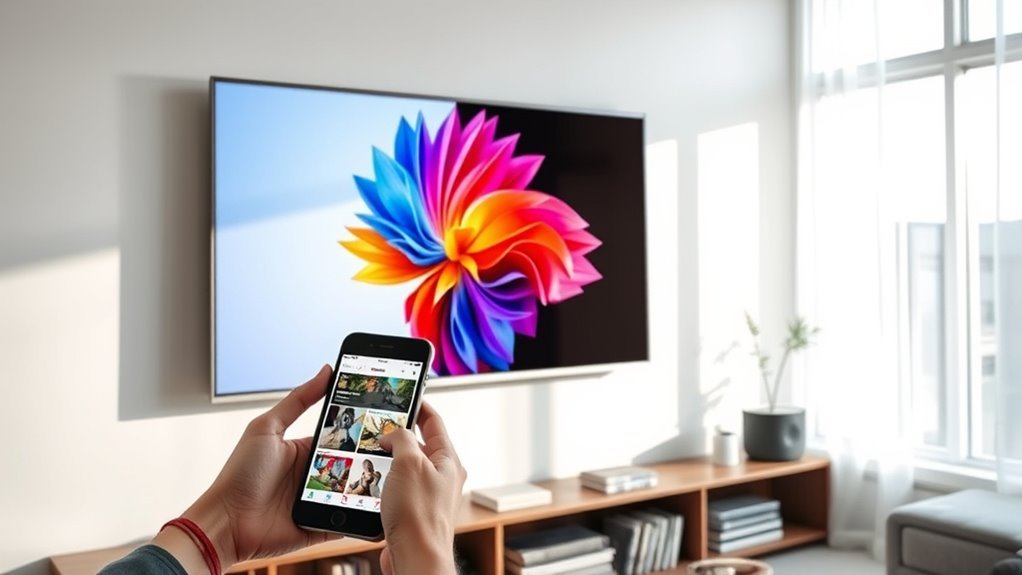
After fine-tuning matte styles and colors to enhance each artwork, you can start building and customizing your digital art library on the Frame TV. Begin by entering Art Mode and selecting “Add Your Photos” via the SmartThings app to upload photos from your personal gallery.
Enhance your artwork with custom matte styles, then build your digital art library on the Frame TV via SmartThings.
Before uploading, make sure to resize images to 3840 x 2160 pixels with a 16:9 aspect ratio for the best display quality. Once uploaded, organize themes by creating collections based on seasons, occasions, or moods to keep your art library neat and easy to navigate.
You can also customize your collection by adjusting matte styles like Modern Matte or Shadowbox Matte and tweaking color tones to complement your room’s decor. This process guarantees each piece shines.
And don’t forget to use the slideshow feature to automatically rotate through your curated collection, making your Frame TV a dynamic display of your personal art library.
Managing Frame TV Art Mode With the Smartthings App
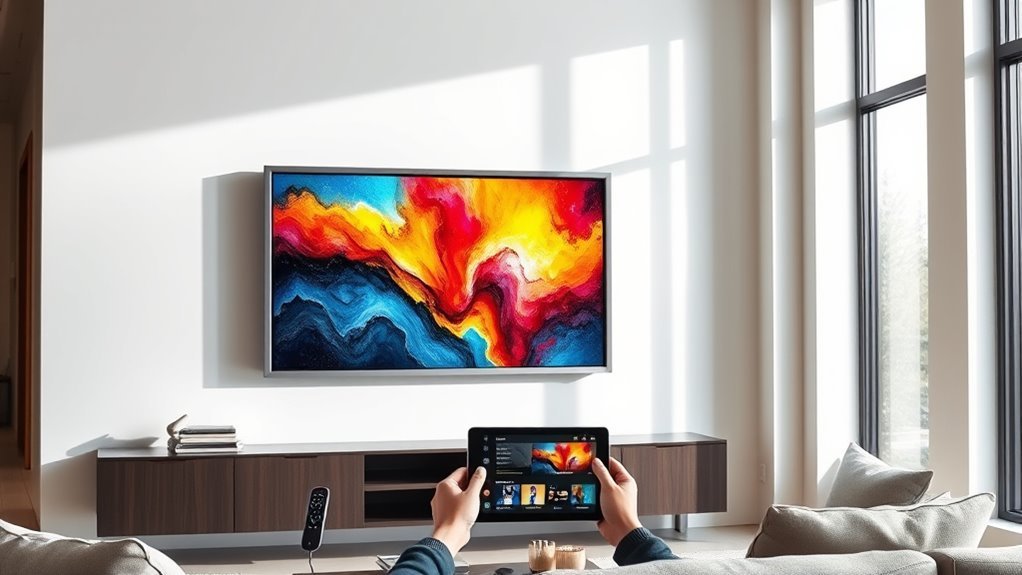
Although setting up your digital art library is just the start, you’ll want to manage and customize Art Mode effortlessly using the SmartThings app. This app lets you take full control of your Samsung TV’s ambient mode and personalize your viewing experience.
Here’s how to use the SmartThings app to manage Art Mode:
- Add Your Photos: Upload personal images directly from your device to your Frame TV through the app.
- Customize Settings: Adjust brightness, color tone, and slideshow speed to suit your room’s lighting and mood.
- Organize Photo Library: Create themed or seasonal collections and assign specific display preferences to each.
- Set Automation: Enable Night Mode or Sleep Timer to automatically activate or pause Art Mode based on usage.
How to Get the Most From Your Frame TV’s Motion and Light Sensors
Managing your Frame TV’s Art Mode through the SmartThings app enhances your viewing experience, but optimizing the built-in motion and light sensors takes it a step further.
To get the most from these sensors, make certain the front sensor is unobstructed for accurate motion detection. Proper mounting at the recommended height and angle helps the sensor adjust brightness effectively based on ambient light.
Avoid placing your TV in highly reflective or brightly lit environments, as external light can interfere with sensor performance. You’ll also want to regularly clean the sensor area to keep dust or smudges from affecting its accuracy.
| Task | Tip | Reason |
|---|---|---|
| Sensor Clearance | Keep sensor unobstructed | Ensures accurate motion detection |
| Mounting | Follow recommended height | Optimizes ambient light sensing |
| Environment Setup | Avoid bright or reflective areas | Prevents sensor interference |
Frequently Asked Questions
How Do I Add Artwork to My Samsung Frame TV?
You add artwork to your Samsung Frame TV by opening the SmartThings app and selecting your TV. Then, you can upload images from your device or a USB drive.
Just make sure your photos are high-resolution and properly sized. That way, they’ll look their best on the big screen.
Can You Upload Your Own Art to a Frame TV?
Yes, you can upload your own art to a Frame TV. Just make sure your images are high-resolution and sized correctly.
You can use a USB drive or the SmartThings app to easily add and customize your artwork. It’s pretty simple to get your personal touch on the screen!
How to Add Art to Samsung Frame TV Without Subscription?
No need to reinvent the wheel—you can add art to your Samsung Frame TV without a subscription by uploading high-resolution images via USB or the SmartThings app.
This lets you showcase your own photos easily and freely. Just pick your favorite images and get them on your TV in no time. It’s simple and totally subscription-free!
How to Get to Art Mode on Frame TV?
You get to Art Mode on your Frame TV by pressing the Power button on the OneRemote. The TV switches from TV mode to Art Mode, displaying artwork or photos automatically when powered on in that setting.
It’s pretty simple to switch back and forth. Just press the Power button again whenever you want to change modes. That way, your Frame TV can easily go from regular viewing to showing beautiful art.
Conclusion
Now that you know how to personalize your Frame TV with your own art, you’re all set to transform your space effortlessly. Did you know that over 70% of Frame TV users say that displaying personalized art makes their living room feel more inviting?
By uploading photos, customizing matte styles, and managing settings through the SmartThings app, you’ll create a stunning digital gallery that reflects your style perfectly. It’s super easy to turn your TV into a unique piece of art that fits your vibe.
Enjoy turning your TV into a true centerpiece! Adding art to your Frame TV not only enhances your room’s look but also brings your personal touch to the forefront. So go ahead, make your Frame TV a beautiful blend of technology and art with just a few simple steps.